Free feature
Fill the whole roster with one button
Press Fill empty places and every gap over the next few months gets a name. Each place goes to whoever has had the fewest turns in that position, and nobody already on is moved.

Twenty Sundays of gaps, filled in a second
Picture the Riverside Community Garden’s watering roster in spring: two people every Sunday morning, a list of eleven volunteers, and twenty Sundays to fill. By hand, that’s an evening with a pencil, counting who has done how many and trying to remember who did last week.
Fill does that counting for you. It goes through every empty place in the range you choose, one date at a time, and gives each place to whoever has had the fewest turns in that position so far. The roster you get is one anyone can look at and follow.
How Fill decides
- Fewest turns first. The person with the fewest turns in that position goes on. When two are level, whoever has had fewer turns on the team overall goes first.
- Away days are respected. Anyone who has marked themselves away on a date is left off it.
- No clashes. Inside your organisation, nobody is put in two places at overlapping times, across all its teams.
- Only people set up for the job. If Sofia only does the barbecue, she is never put on the till.
- Nobody already on is moved. Fill only adds. You can run it every week and it just fills whatever has opened up.
Running it, step by step
- 01
Open Fill
In the team, go to Fill. It shows the empty places and the Turns booked chart beside it.
- 02
Choose the range
Under How far ahead, pick the next month, or the next 3, 6, 9 or 12 months.
- 03
Pick the position
If the team has positions, choose one under Which position, or Every position.
- 04
Untick anyone to keep back
Who to use starts with everybody ticked. Untick a reserve or someone taking a break.
- 05
Press Fill empty places
The places are filled and the chart updates straight away.
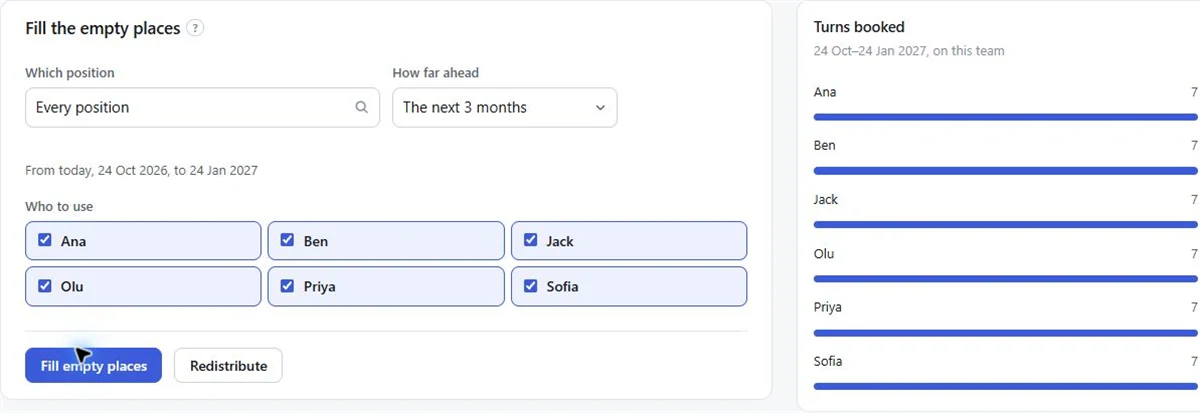
The Turns booked chart
Beside Fill sits a bar for each person showing how many dates they have in the range. It is the easiest way to answer “why am I on again?” before anyone asks. If the bars look lopsided because people were added by hand, Redistribute shares the dates out again and shows you what would change first.
Undo and fine-tune
Changed your mind? Clear the range takes everybody off the dates in the range (for one position or all of them) and shows how many places it would clear first, with the option to keep the ones you set by hand. The dates themselves stay.
For dates with more than one time, like a morning and an afternoon session, tick Same person all day and Fill keeps one person on each position for the whole day. If they can’t do one time, only that one goes to somebody else.
Fill is free, for any number of people and teams. With Pro, new dates can also be filled by themselves as they are added.
Questions
Is this an automatic roster generator?
Yes. Fill puts people into every empty place over the range you choose, giving each place to whoever has had the fewest turns in that position. You decide when to press it.
Will Fill move people I put on by hand?
It never moves anyone already on a date. It only fills empty places, so you can run it as often as you like.
Does Fill know about other teams?
Yes, within your organisation. Nobody is put in two places at overlapping times across its teams. Bookings in other organisations are not checked.
Can some people be on more than others?
Everyone is treated alike on Free. On Pro, How often lets you set each person to More often, Normal, Less often or Now and then.
Can I try the idea without signing up?
Yes. The free roster maker on the website uses the same fewest-turns rule and makes a roster to print or download.
Read next
Redistribute
Someone leaves or joins mid-season? Share the dates out again and see every change first.
Fair rotation generator
A rotating schedule from a list of names, with the rule it follows spelled out.
Fill empty places
Use Fill to put people into the empty places on a team’s roster, over the next 1 to 12 months.
Make your roster free
Click a day, add people, share one link. No card, no limit on people or dates.