Add a date
Put a single date on a team’s roster by clicking the day on the calendar.
Help topics
Start
Create an organisationAdd your first teamAdd peopleThe join linkAdministrators, moderators and membersDates
Add a dateRepeating datesChange or cancel one dateKeep dates aheadPositions
Positions and headcountsWho can do whatFilling the roster
Fill empty placesRedistributeClear the rangeSame person all dayReading Turns bookedSharing
The public rosterYour next datesAway days
Mark yourself awayAway for a stretchAway regularlyAway days for people without an accountPro
What Pro addsReplying to a dateRoster emailsHow oftenBuying and renewing ProYour account
Sign-in codesChange your emailStop invitationsWhen something goes wrong
Didn’t get an emailA link has expiredTake back an answerAdd it from the calendar
Say the Coastal Surf Club needs two people on the canteen on Saturday 14 March, 7:30 till 11. Administrators can add dates to any team; a moderator can add them to their own team.
- Press Home in the menu to open the calendar. The Month, Week and List views all work.
- Click the day. A panel for that day opens beside the calendar.
- Press Add to this date. (The Add a date button at the top does the same for today or the day you picked.)
- If you have more than one team, choose the Team.
- Set From and To, such as 07:30 and 11:00.
- Leave Does it repeat? on Just this once.
- Press Add to the roster.
The date appears on the calendar in the team’s colour, showing how many places are empty.
Optional extras
- Give this date its own name is for something out of the ordinary, like “Carnival day” or “Stocktake”. Most dates don’t need one; they show the team’s name.
- Who is on it puts one person on as you add it. Leave it on Decide later to fill it afterwards.
Note: If To is earlier than From, FairTurns reads it as finishing the next day, so 22:00 to 06:00 is an overnight shift. A team can’t have two dates starting at the same time on the same day.
Put people on it
Click the date’s day again and find it in the day panel. Press Change people. Each place has its own list of names; only people on the team who can do that position are offered. Choose them and press Save.
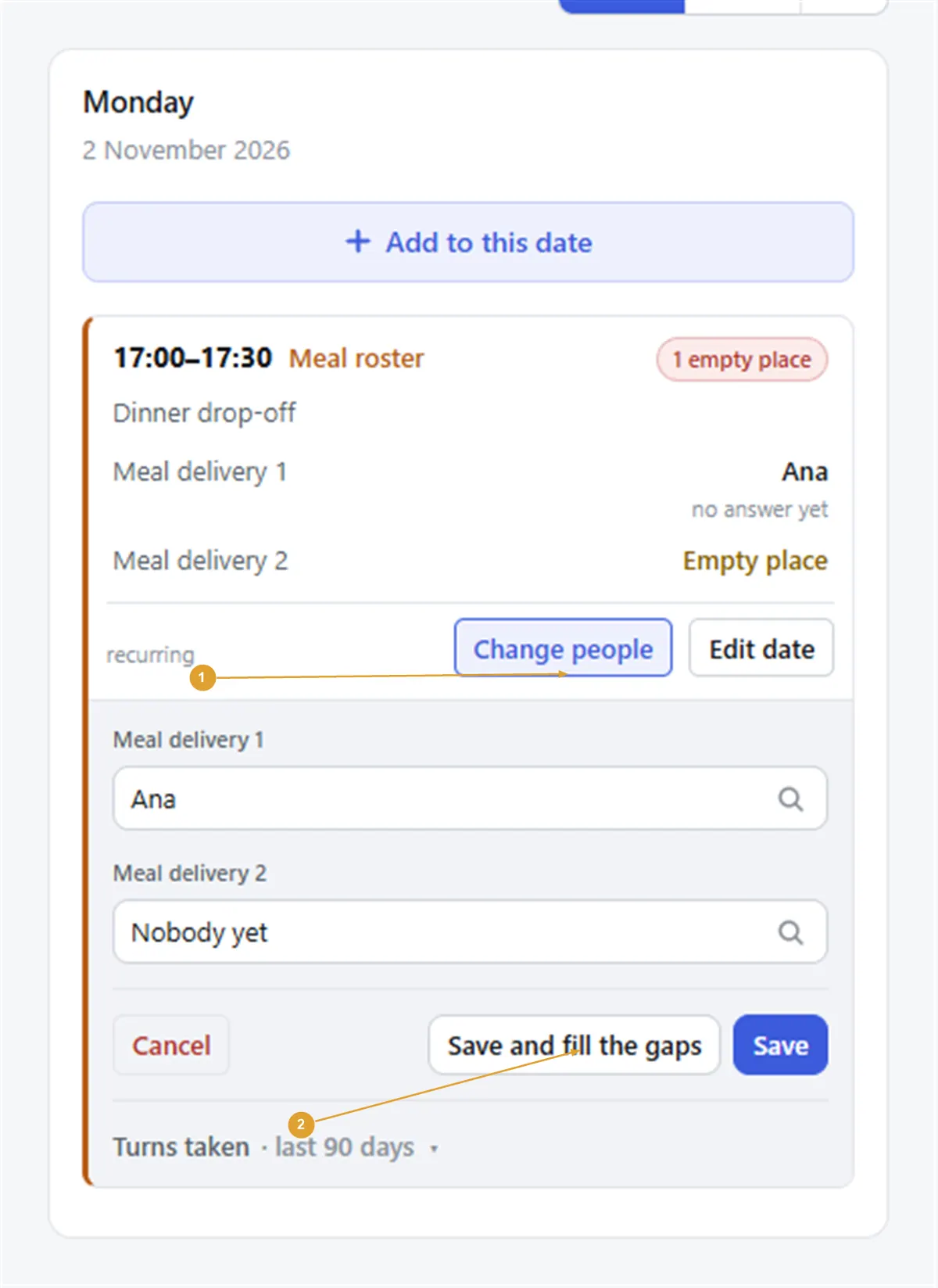
Save and fill the gaps saves your choices, then fills any places still empty the same way Fill does. Under the lists, Turns taken shows how many dates each person has had in the last 90 days.
If you pick someone who is marked away that day, or who is already on somewhere else in your organisation at that time, FairTurns asks first and tells you why.
For a date that comes round every week or month, use Repeating dates instead of adding each one. To move or cancel one, see Change or cancel one date.
Still stuck?
Email info@fairturns.com and say what you were trying to do.