Reading Turns booked
Use the Turns booked chart to see how many dates each person has coming up, before and after you fill.
Help topics
Start
Create an organisationAdd your first teamAdd peopleThe join linkAdministrators, moderators and membersDates
Add a dateRepeating datesChange or cancel one dateKeep dates aheadPositions
Positions and headcountsWho can do whatFilling the roster
Fill empty placesRedistributeClear the rangeSame person all dayReading Turns bookedSharing
The public rosterYour next datesAway days
Mark yourself awayAway for a stretchAway regularlyAway days for people without an accountPro
What Pro addsReplying to a dateRoster emailsHow oftenBuying and renewing ProYour account
Sign-in codesChange your emailStop invitationsWhen something goes wrong
Didn’t get an emailA link has expiredTake back an answerWhere to find it
Open the team and press the Fill tab. Turns booked sits beside the Fill controls (below them on a phone). Under the heading is the period it covers and what it counts, such as “24 Oct–24 Jan 2027, on this team”.
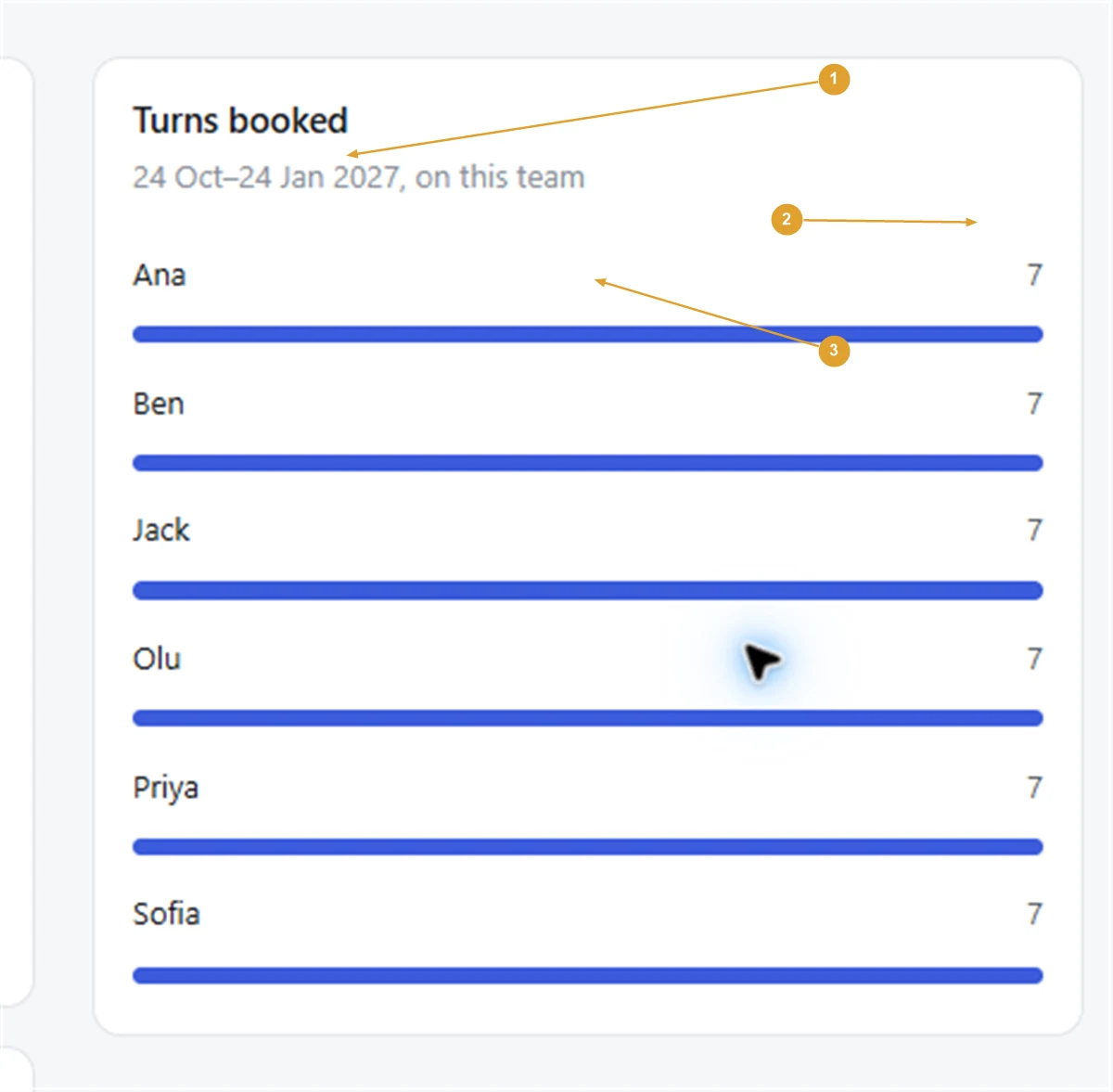
Each person on the team has a row: their name, the number of dates they have in that period, and a bar so you can compare at a glance. The person with the most is at the top.
Change what it counts
- Change How far ahead to count over the next 1, 3, 6, 9 or 12 months. The period always starts today.
- Choose a position under Which position to count that job only. The heading changes to “on Canteen”, say, and the chart lists the people set up for it.
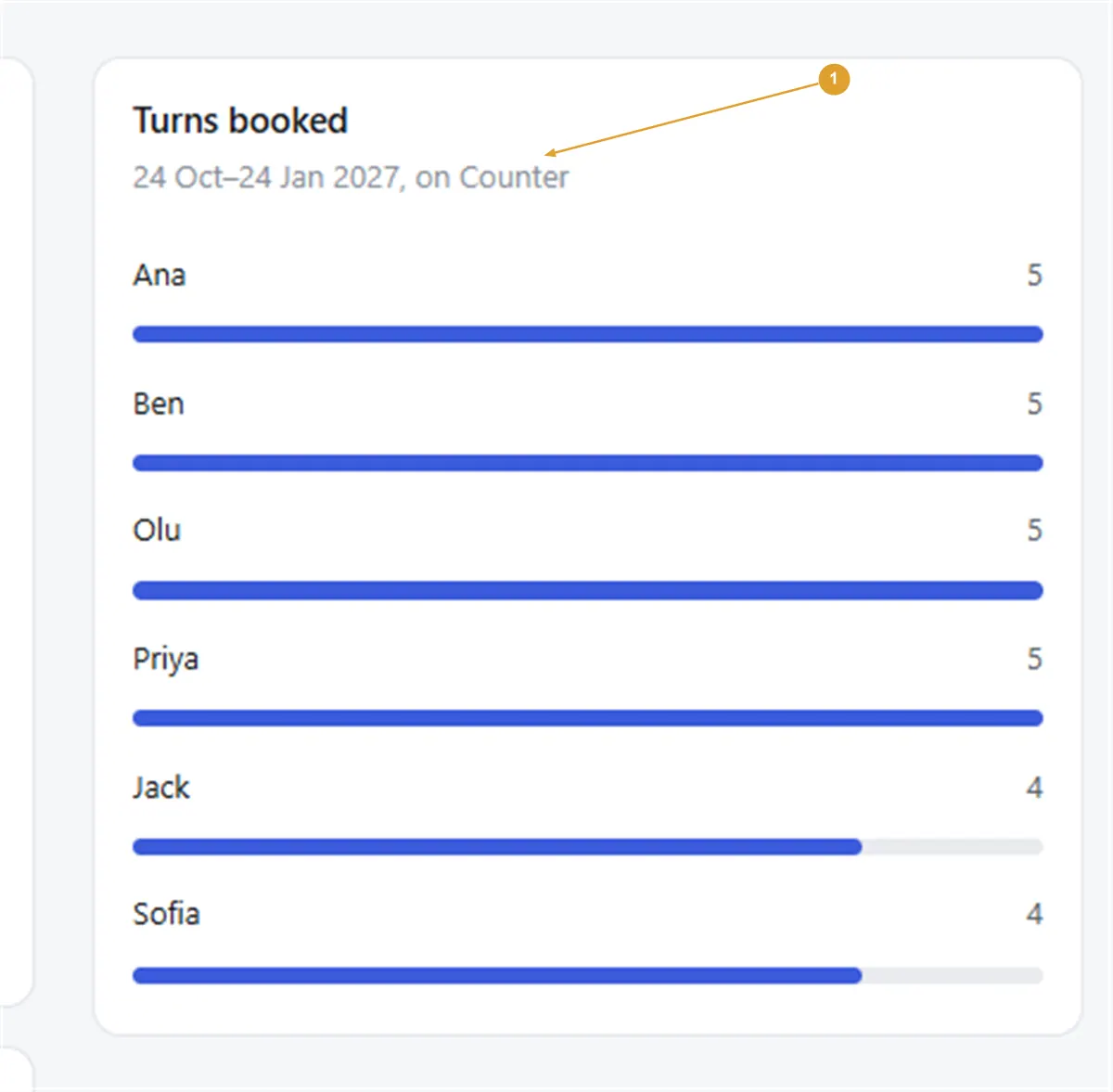
It counts every date the person is on in this team in that period, whether Fill put them there or you did by hand. Cancelled dates aren’t counted, and nor are past ones.
With Pro, a person’s How often setting shows beside their name when you look at one position, such as “· less often”, so a lower number is expected.
How to read it
At the Parkside Bowls Club, Turns booked over three months shows Jack 6, Ana 5, Dev 5 and Yuki 1. Yuki’s short bar is a question to ask: is she away a lot this season, only set up for one position, or new? The chart shows where the dates sit; your group decides what fair looks like.
- Before a fill: see who already has dates, perhaps from hand-placing.
- After a fill or Redistribute: check the result before people see it.
- Someone with a 0 may be ticked off, away for the whole range, or not set up for any position with dates.
Note: The chart looks forward from today. For the last 90 days, open a date on the calendar and press Change people: under the lists, Turns taken shows how many dates each person has had.
Related: Fill empty places and Same person all day. More on fair fill.
Still stuck?
Email info@fairturns.com and say what you were trying to do.