Mark yourself away
Press Away on the dates you can’t do, so nobody puts you on them.
Help topics
Start
Create an organisationAdd your first teamAdd peopleThe join linkAdministrators, moderators and membersDates
Add a dateRepeating datesChange or cancel one dateKeep dates aheadPositions
Positions and headcountsWho can do whatFilling the roster
Fill empty placesRedistributeClear the rangeSame person all dayReading Turns bookedSharing
The public rosterYour next datesAway days
Mark yourself awayAway for a stretchAway regularlyAway days for people without an accountPro
What Pro addsReplying to a dateRoster emailsHow oftenBuying and renewing ProYour account
Sign-in codesChange your emailStop invitationsWhen something goes wrong
Didn’t get an emailA link has expiredTake back an answerOpen your away days
Ngaio does the Sunday tea and coffee at Elmwood Bowls. Her granddaughter’s christening is on Sunday 12 April, so she can’t be there that week. You never have to mark anything; if you mark nothing, you can be put on any date. Get to your away days either way:
- Under Your next dates on the calendar, press Mark yourself away.
- Or press your name in the top menu to open your account, and press Your away days.
Mark one date
- Look at Your upcoming dates. These are the real dates of your teams over the next three months, grouped by month. A team that only meets on Sundays only shows Sundays.
- Press Show more (12 months) if the date is further off.
- Press Away beside the date you can’t do.
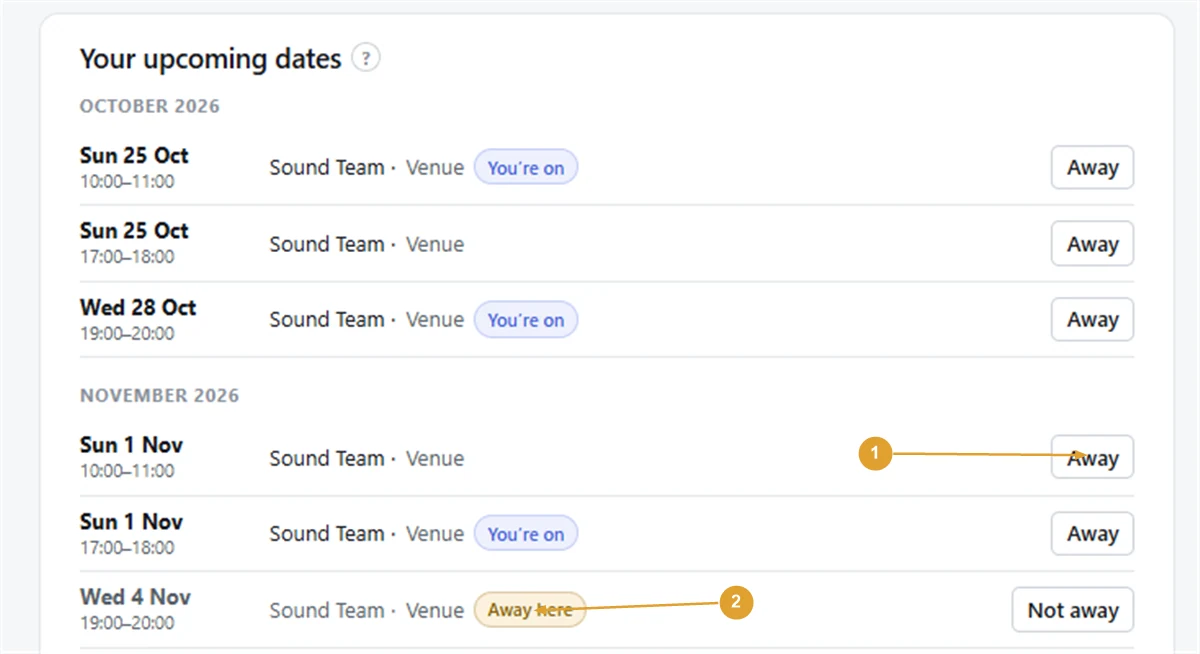
The row now shows an Away label, and the day appears under Your away days on the same page. Changed your mind? Press Not away on that row.
You are away for the whole day, so if your teams have a morning and an evening date that day, you are off both.
Note: Marking yourself away doesn’t take you off a date you are already on, and your organiser isn’t told. If the date shows You’re on, FairTurns asks first and reminds you to let them know. With Pro, you can tick Also tell them I can’t make it before pressing Mark away, and the place is offered to the next person.
What organisers see
Fill and Redistribute leave you off that day, and so does filling by itself with Pro. Organisers see you greyed and labelled Away when they choose people for that date. They never see a reason, only that you are away.
More than one organisation
If you are in more than one organisation, a box at the top called New marks apply to lets you choose All my organisations or just one. All of them is usually right: being away is about you, not one roster. Choose one when, say, you can still do the school canteen but not the footy club that weekend.
For a holiday, use Away for a stretch. For something that keeps coming round, use Away regularly.
Still stuck?
Email info@fairturns.com and say what you were trying to do.