Change or cancel one date
Change the times on one date, or call it off, without disturbing the rest of the roster.
Help topics
Start
Create an organisationAdd your first teamAdd peopleThe join linkAdministrators, moderators and membersDates
Add a dateRepeating datesChange or cancel one dateKeep dates aheadPositions
Positions and headcountsWho can do whatFilling the roster
Fill empty placesRedistributeClear the rangeSame person all dayReading Turns bookedSharing
The public rosterYour next datesAway days
Mark yourself awayAway for a stretchAway regularlyAway days for people without an accountPro
What Pro addsReplying to a dateRoster emailsHow oftenBuying and renewing ProYour account
Sign-in codesChange your emailStop invitationsWhen something goes wrong
Didn’t get an emailA link has expiredTake back an answerChange the times
The Easter Saturday shift at Bayside Op Shop finishes at 1 instead of 4. Only that one date needs changing.
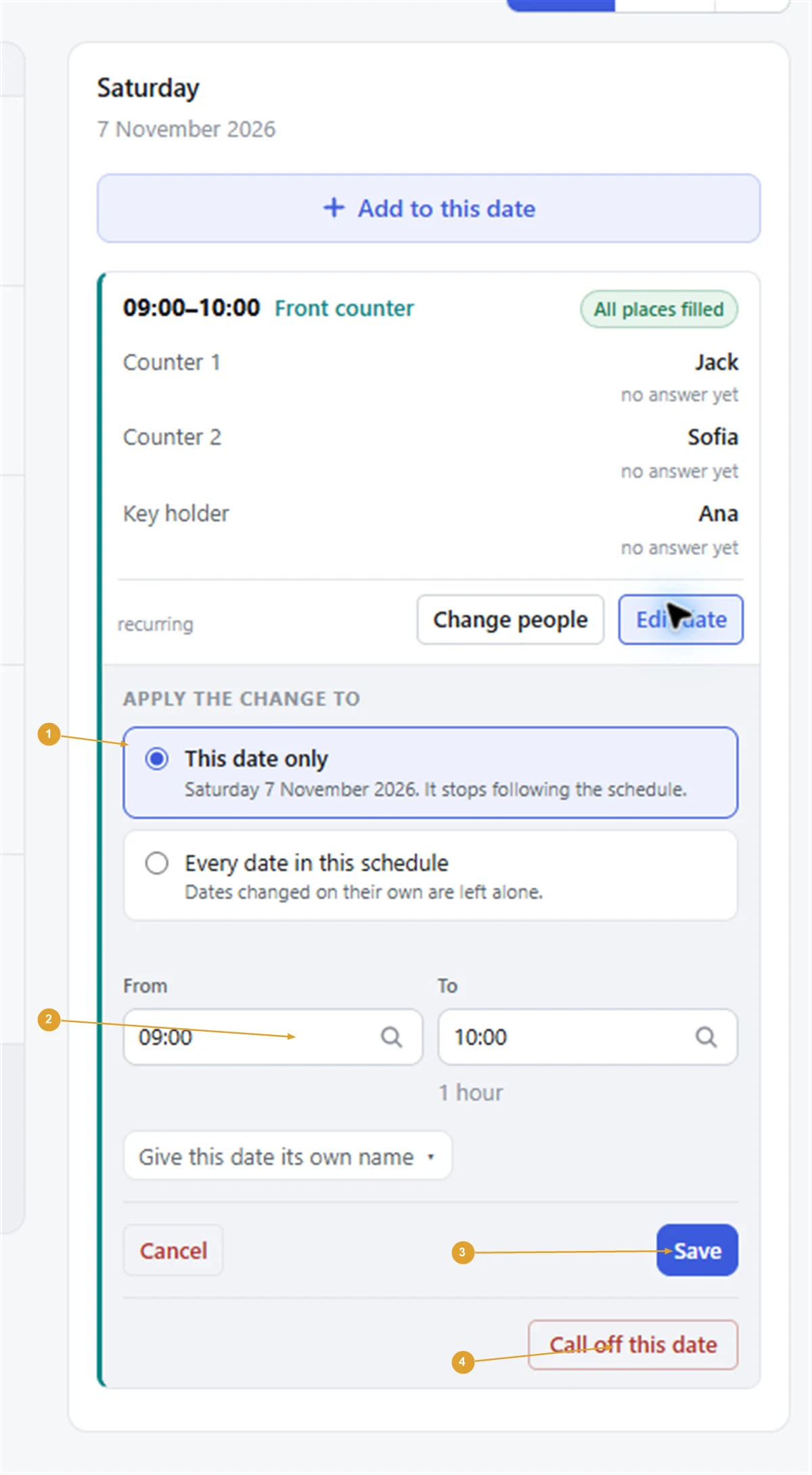
- Press Home and click the day.
- Find the date in the day panel and press Edit date.
- If it repeats, choose under Apply the change to: This date only, or Every date in this schedule.
- Change From and To, or the name under Give this date its own name.
- Press Save.
With This date only, that date keeps your change and stops following the schedule. The day panel marks it edited on its own. Later changes to the whole schedule leave it alone.
With Every date in this schedule, every upcoming date takes the new times, except any you have edited on their own. Past dates are never changed.
To bring an edited date back into line, open Edit date on it and press Follow the recurrence again.
Note: Edit date changes the times and the name, not the day or the team. To move a turn to another day, call this date off and add a date on the new day.
Call off one date
- Click the day, then press Edit date on it.
- Press Call off this date at the bottom.
- The confirmation lists who is on it. Press Call it off.
The date stays on the calendar marked Cancelled, and the rest of the schedule is untouched. The people on it are kept with the date.
To bring it back, click the day and press Put this date back. Everyone who was on it is back on.
Remove a one-off date
A date that doesn’t repeat shows Remove this date instead. Confirm with Remove the date. It is deleted, along with who was on it, and can’t be put back.
For a whole schedule, such as the netball season ending, use the Schedules tab instead: see Keep dates ahead to stop it repeating after a date, or pause it. To change who is on a date rather than when, press Change people in the day panel.
Related: Repeating dates.
Still stuck?
Email info@fairturns.com and say what you were trying to do.