Add people
Add people to the organisation by email, by name only, or by pasting a whole list.
Help topics
Start
Create an organisationAdd your first teamAdd peopleThe join linkAdministrators, moderators and membersDates
Add a dateRepeating datesChange or cancel one dateKeep dates aheadPositions
Positions and headcountsWho can do whatFilling the roster
Fill empty placesRedistributeClear the rangeSame person all dayReading Turns bookedSharing
The public rosterYour next datesAway days
Mark yourself awayAway for a stretchAway regularlyAway days for people without an accountPro
What Pro addsReplying to a dateRoster emailsHow oftenBuying and renewing ProYour account
Sign-in codesChange your emailStop invitationsWhen something goes wrong
Didn’t get an emailA link has expiredTake back an answerThree ways in
Only administrators add people to the organisation. Press People in the menu, then Add somebody. Across the top of the box are three choices: By email, By name and Paste a list.
Use email for anyone who should see the roster in the app. Use a name for someone who reads the printed sheet, like Uncle Ray at the Men’s Shed who has no email address. Paste a list when you are moving a whole spreadsheet across.
By email
- Choose By email and type the Email address.
- Choose a Team if you like, so they are ready to roster. No team yet is fine too.
- Press Send the invitation.
They get one email asking whether they want to join, and choose their own name and password. Until they accept, they show as Invited on the People page. If the address already has a FairTurns account, the invitation waits for them under Invitations when they sign in.
Note: An address gets that one invitation and nothing else from FairTurns until the person says yes. If they use the link in that email to ask not to be invited, FairTurns won’t send your organisation’s invitations to that address again.
By name
- Choose By name and type Their name.
- Choose a Team if you like.
- Press Add to the roster.
They show as Roster only. They can be put on dates and printed like anybody else, and are never emailed. If they want an account later, press Add email beside their name, leave Send them an invitation now ticked and press Save the address. Every date they are already on is kept. Until then, an organiser can mark their away days for them.
Paste a list
- Choose Paste a list. A page called Add a list of people opens.
- Paste one person per line: name, then optionally an email address and a team, separated by commas. Cells copied straight from a spreadsheet work too.
- Press Add them.
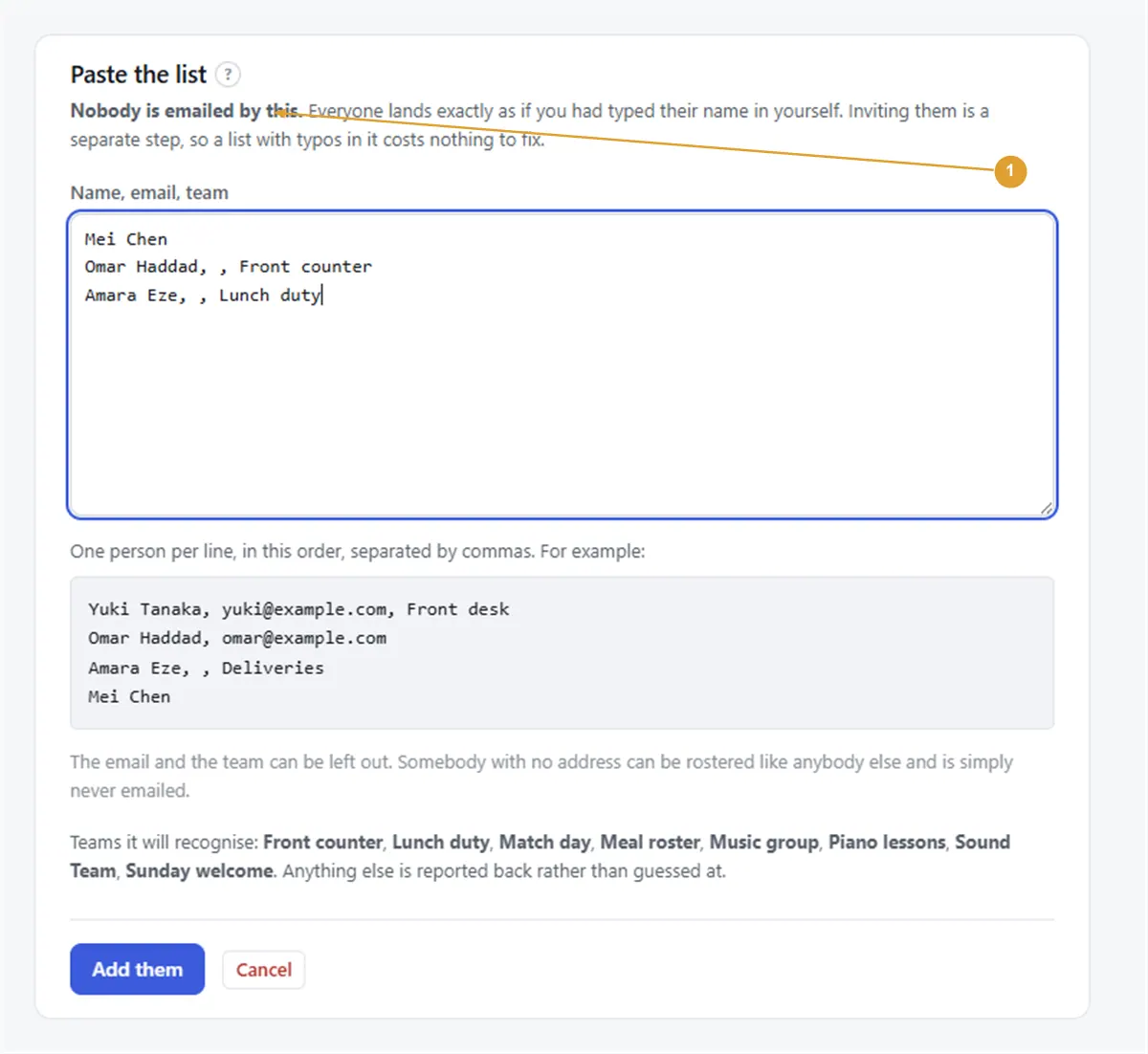
Nobody is emailed by a pasted list. A team has to match one of your team names exactly; anything else is reported back rather than guessed. People already in the organisation are left alone, and a first line that just says “Name” is skipped.
Someone can also let themselves in with the join link, if you switch it on. To give someone more say in running things, see Administrators, moderators and members.
Still stuck?
Email info@fairturns.com and say what you were trying to do.