Roster emails
Switch on the schedule email and the reminder before each date, and choose when they go.
Help topics
Start
Create an organisationAdd your first teamAdd peopleThe join linkAdministrators, moderators and membersDates
Add a dateRepeating datesChange or cancel one dateKeep dates aheadPositions
Positions and headcountsWho can do whatFilling the roster
Fill empty placesRedistributeClear the rangeSame person all dayReading Turns bookedSharing
The public rosterYour next datesAway days
Mark yourself awayAway for a stretchAway regularlyAway days for people without an accountPro
What Pro addsReplying to a dateRoster emailsHow oftenBuying and renewing ProYour account
Sign-in codesChange your emailStop invitationsWhen something goes wrong
Didn’t get an emailA link has expiredTake back an answerRoster emails are part of Pro and are off until an administrator turns them on. Plenty of groups never need them: the calendar and the public roster link already show who is on. Turn them on when your people actually want to be told.
Turn them on
- Go to Settings and open the Notifications tab.
- Press Turn notifications on. Two cards appear: The whole schedule and Before a date.
- Under The whole schedule, tick Send the schedule to the whole team. Choose How often (Every week, Every fortnight or Every month), the day, and the time under At.
- Under Before a date, tick Remind the people who are on it. Choose How much warning, from 1 to 6 days before, and the time.
- Press Save. A line under the cards sums up what people will get, such as “People get the whole schedule on the 1st of each month, and their own dates 2 days beforehand.”
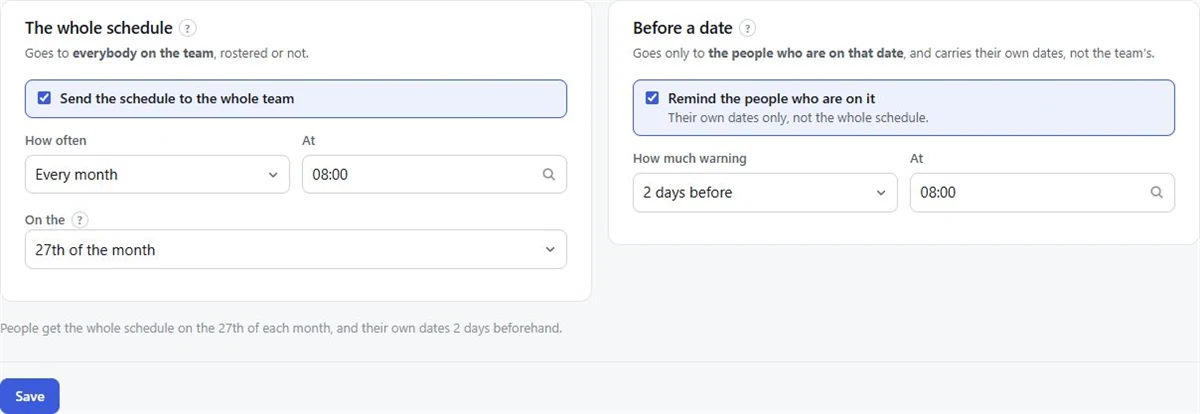
Note: A monthly schedule can go out on the 1st to the 28th of the month, no later. The 30th does not exist in February, so the latest day is the 28th.
Who gets what
- The schedule goes to everybody on each team, rostered or not, and lists the team’s dates for the period with who is on. It also tells each person which of those dates they are marked away on. A team with nothing on in that period sends nothing.
- The reminder goes only to the people on that date and carries their own dates, with I can do it and I can’t make it buttons. See Replying to a date.
- Can’t make it emails go to the team’s moderators, or to the administrators if the team has none, as soon as someone says they can’t make a date.
On a team that fills by itself, the next person in line for a place someone can’t make is also emailed and asked whether they can do it. Times are in the organisation’s time zone. A reply to the schedule or a reminder goes to the team’s moderator; a reply to a can’t-make-it email goes to the person who can’t make it.
Note: Roster emails only go to people who have accepted their invitation and set up an account. People added by name only, and anyone still shown as Not signed in on the People page, get nothing. See Didn’t get an email.
Turn them off
Press Turn notifications off on the same tab and nothing about the roster is emailed. Sign-in codes, password resets and invitations are not notifications and are sent either way. More on the roster reminders feature.
Still stuck?
Email info@fairturns.com and say what you were trying to do.