Your next dates
See your own upcoming turns at a glance, under the calendar, without hunting through the month.
Help topics
Start
Create an organisationAdd your first teamAdd peopleThe join linkAdministrators, moderators and membersDates
Add a dateRepeating datesChange or cancel one dateKeep dates aheadPositions
Positions and headcountsWho can do whatFilling the roster
Fill empty placesRedistributeClear the rangeSame person all dayReading Turns bookedSharing
The public rosterYour next datesAway days
Mark yourself awayAway for a stretchAway regularlyAway days for people without an accountPro
What Pro addsReplying to a dateRoster emailsHow oftenBuying and renewing ProYour account
Sign-in codesChange your emailStop invitationsWhen something goes wrong
Didn’t get an emailA link has expiredTake back an answerFind your dates
Fatima helps on two teams at the Riverside Neighbourhood Centre: the Tuesday food pantry and the Saturday playgroup. She doesn’t want to scan both teams’ colours across a whole month just to find her own name.
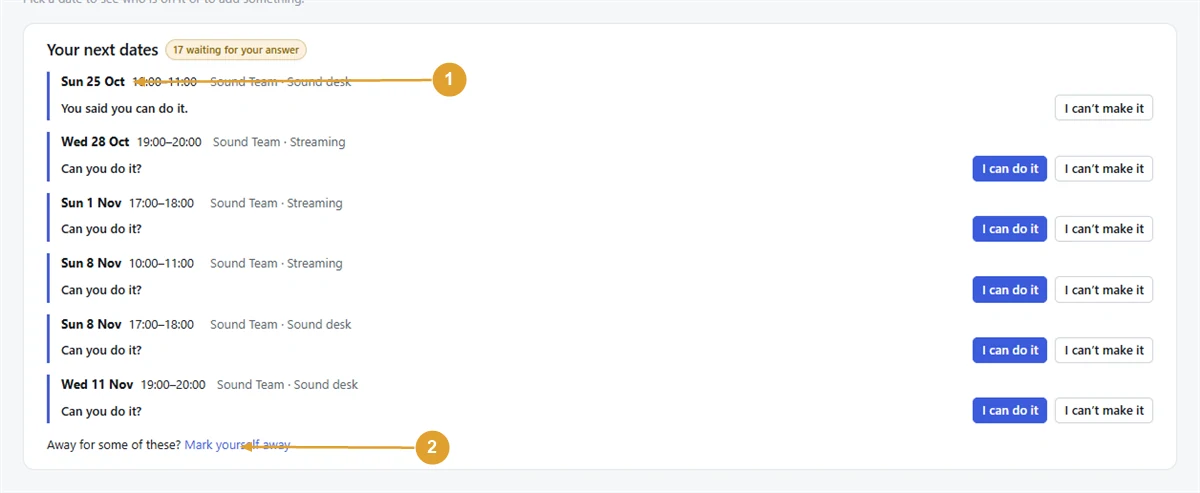
- Sign in. If you are in more than one organisation, open the one you want from your Dashboard by pressing Calendar.
- You are on the organisation’s calendar (Home in the menu).
- Look under the calendar for the Your next dates card.
It lists the next six dates you are on in this organisation, across all your teams, soonest first. Each line shows the day and time, then the team, the position if the team has them, and the date’s name if it has one.
Press the day and time on any line to open that day on the calendar and see who else is on with you.
Note: The card only appears when you are on at least one upcoming date, and only on the organisation calendar under Home, not inside a single team’s calendar. If you are in several organisations, each one’s calendar shows its own dates.
Can’t make one?
Under the list is a link: Away for some of these? Mark yourself away. It opens your away days, where you mark the days you can’t do. See Mark yourself away.
Marking yourself away keeps you off future fills but doesn’t take you off a date you are already on. Let your organiser know, so they can change it.
With Pro
If the organisation has Pro, each date on the card has I can do it and I can’t make it buttons, and a note at the top says how many dates are waiting for your answer. See Replying to a date.
Without Pro, the buttons show greyed out with a Pro label. Your dates are still listed in full.
Your dates are also on the public roster, if your organisation publishes one.
Still stuck?
Email info@fairturns.com and say what you were trying to do.