How often
Put some people on more than others in a position, such as an old hand and a trainee, with the How often setting.
Help topics
Start
Create an organisationAdd your first teamAdd peopleThe join linkAdministrators, moderators and membersDates
Add a dateRepeating datesChange or cancel one dateKeep dates aheadPositions
Positions and headcountsWho can do whatFilling the roster
Fill empty placesRedistributeClear the rangeSame person all dayReading Turns bookedSharing
The public rosterYour next datesAway days
Mark yourself awayAway for a stretchAway regularlyAway days for people without an accountPro
What Pro addsReplying to a dateRoster emailsHow oftenBuying and renewing ProYour account
Sign-in codesChange your emailStop invitationsWhen something goes wrong
Didn’t get an emailA link has expiredTake back an answerWithout it, every empty place goes to whoever has had the fewest turns in that position. That suits most teams. How often is for the team where one person knows the job inside out and another is still learning, or someone has asked to be on less this term. It is part of Pro, and team moderators and administrators can set it.
Set it for each person
- Open Teams, choose the team and go to its Fill tab.
- Find the How often card. Each position has its own list of the people set up for it, with the number of dates in the next three months.
- Beside each name, choose More often, Normal, Less often or Now and then. Everyone starts on Normal.
- Watch the guide beside each name, such as “about 4 dates”. It updates as you change the settings, so you can see the effect before saving.
- Press Save.
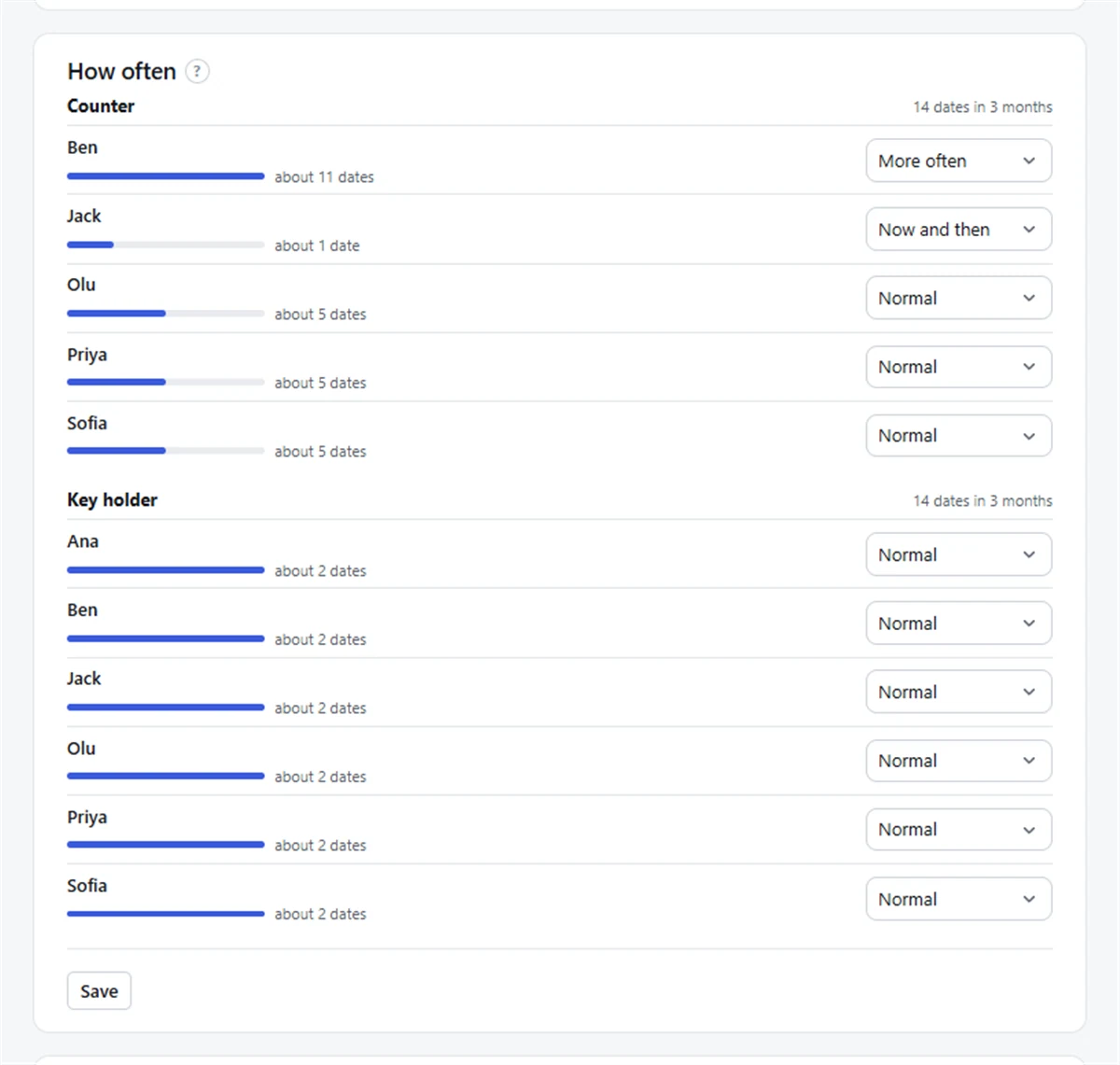
Somebody who does two positions has a setting for each. Mei can be More often on the coffee machine and Now and then on the till.
Note: The figures are a rough guide for the next three months, not a promise. Away days, clashes with other teams and the people you untick all move them a little.
What uses it
Fill, Redistribute and filling by itself all follow it. Whoever is furthest behind their share of that position goes first. Each position is shared out only between the people set up for it, so a setting on one position never changes another.
When you choose one position at the top of the Fill page, Turns booked shows a person’s setting beside their name if it is anything other than Normal, so you can read the chart with that in mind.
Changing it on a full roster
Saving a new setting does not move anyone already on the roster. Fill only uses it for empty places from then on. To reshape dates that are already filled, run Redistribute: it shows every person who gains or loses a date before anything changes.
Each person still sees only the dates they are on; nobody sees the settings except the people who run the team. On Free, the card is greyed out and everybody is treated the same, fewest turns first. See What Pro adds and the How often feature.
Still stuck?
Email info@fairturns.com and say what you were trying to do.