Clear the range
Take everybody off a team’s dates for a stretch of months, keeping the dates, so you can start the filling again.
Help topics
Start
Create an organisationAdd your first teamAdd peopleThe join linkAdministrators, moderators and membersDates
Add a dateRepeating datesChange or cancel one dateKeep dates aheadPositions
Positions and headcountsWho can do whatFilling the roster
Fill empty placesRedistributeClear the rangeSame person all dayReading Turns bookedSharing
The public rosterYour next datesAway days
Mark yourself awayAway for a stretchAway regularlyAway days for people without an accountPro
What Pro addsReplying to a dateRoster emailsHow oftenBuying and renewing ProYour account
Sign-in codesChange your emailStop invitationsWhen something goes wrong
Didn’t get an emailA link has expiredTake back an answerWhen it helps
You pressed Fill on the Westfield Swim Club timekeepers before setting up who can do starting and who can do timing, and now the next three months are a muddle. Clear the range takes everybody off, leaves the dates where they are, and lets you fill again properly.
For smaller changes, such as somebody new joining, Redistribute is gentler: it moves as few people as it can.
Clear it
- Open the team and press the Fill tab.
- Choose How far ahead. The range always starts today.
- To clear one job only, choose it under Which position. Leave Every position to clear them all.
- Scroll to the Clear the range card. It spells out exactly what it will do, such as “Takes everybody off Timekeeper from 24 Oct 2026 to 24 Jan 2027”.
- Press Clear the range.
- A page called Clear the roster says how many places will be cleared. If some were set by hand, choose Keep them as they are or Let this change them too.
- Press the button with the number on it, such as Clear 36 from the roster.
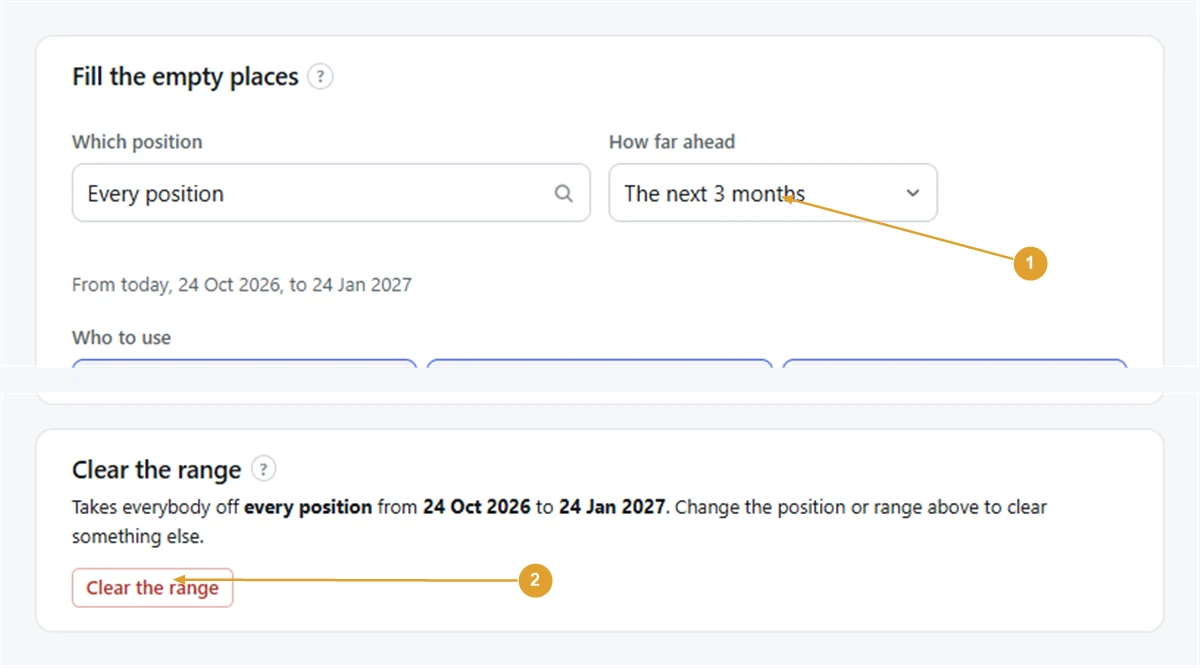
The dates stay on the calendar with their places empty. Other positions keep who they have when you cleared just one.
Note: Clearing can’t be undone, and filling again won’t put the same people back on the same dates. If only a few dates are wrong, fix those with Change people on the calendar instead.
After clearing
Sort out whatever caused the muddle first: who can do what, who to tick under Who to use, or who is away. Then press Fill empty places.
Clearing only touches dates from today to the end of the range you chose. Past dates are the record of who was actually on, and stay as they are.
If people were told their dates by email (Pro roster emails) or have seen them on the public roster link, let them know the roster has changed. Nobody is emailed by clearing.
Still stuck?
Email info@fairturns.com and say what you were trying to do.