Sign-in codes
Use the six-digit code FairTurns emails you when you sign in on a new browser, or every time if you choose.
Help topics
Start
Create an organisationAdd your first teamAdd peopleThe join linkAdministrators, moderators and membersDates
Add a dateRepeating datesChange or cancel one dateKeep dates aheadPositions
Positions and headcountsWho can do whatFilling the roster
Fill empty placesRedistributeClear the rangeSame person all dayReading Turns bookedSharing
The public rosterYour next datesAway days
Mark yourself awayAway for a stretchAway regularlyAway days for people without an accountPro
What Pro addsReplying to a dateRoster emailsHow oftenBuying and renewing ProYour account
Sign-in codesChange your emailStop invitationsWhen something goes wrong
Didn’t get an emailA link has expiredTake back an answerYou sign in to FairTurns with your email address and password. On a browser FairTurns has not seen in the last 30 days, it also emails you a six-digit code, so somebody who learns your password still can’t get in from their own computer.
Sign in with a code
- Go to the sign-in page, enter your Email address and Password, and press Sign in.
- A page headed Check your email says where the code went. Open the email “Your FairTurns sign-in code”.
- Type the six digits into Verification code and press Sign in.
That browser is then remembered for 30 days, so you are not asked again each time.
If the code doesn’t work
- Each code lasts 15 minutes. After that the page says That code has expired. Request a new one.
- Only the newest code works. If you asked twice, use the latest email.
- After five wrong tries the code stops working. Ask for a new one.
- To get a new code, use Code not arrived? Sign in again to get a new one under the form. It counts down for a minute first, so an earlier code has time to land.
Note: Codes are sent whatever your organisation’s notification settings say. If one never arrives, check your spam or junk folder and the address you typed. See Didn’t get an email.
Ask for a code every time
- Open your account: your first name at the top of the page, or Account on the dashboard.
- Under Sign-in codes, tick Email me a code every time I sign in.
- Press Save.
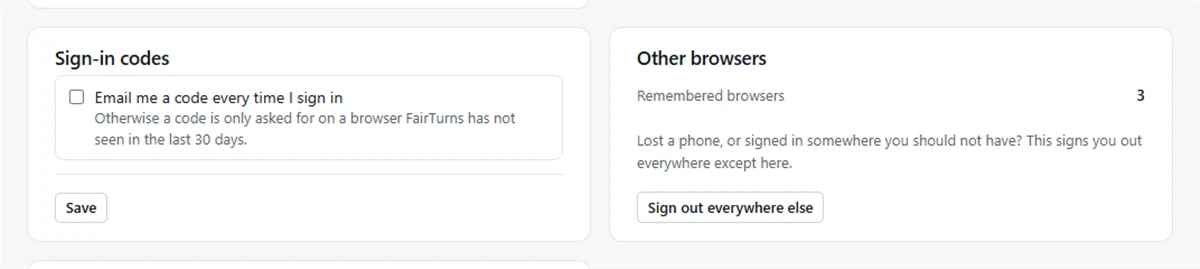
Untick it to go back to codes only on browsers FairTurns hasn’t seen lately.
On a shared or lost device
On a shared computer, use Sign out and forget this browser, so the next person to sign in there is asked for a code. If you lose a phone or signed in somewhere you shouldn’t have, press Sign out everywhere else on your account page. To keep codes coming to the right inbox, see Change your email.
Still stuck?
Email info@fairturns.com and say what you were trying to do.