Create an organisation
Create the organisation that holds your teams and people, and become its first administrator.
Help topics
Start
Create an organisationAdd your first teamAdd peopleThe join linkAdministrators, moderators and membersDates
Add a dateRepeating datesChange or cancel one dateKeep dates aheadPositions
Positions and headcountsWho can do whatFilling the roster
Fill empty placesRedistributeClear the rangeSame person all dayReading Turns bookedSharing
The public rosterYour next datesAway days
Mark yourself awayAway for a stretchAway regularlyAway days for people without an accountPro
What Pro addsReplying to a dateRoster emailsHow oftenBuying and renewing ProYour account
Sign-in codesChange your emailStop invitationsWhen something goes wrong
Didn’t get an emailA link has expiredTake back an answerSign up and create it
An organisation is the whole group: Riverbend Tennis Club, the Kowalski household, Harbour Physio. Teams, people and dates all live inside it. Whoever creates it becomes its first administrator.
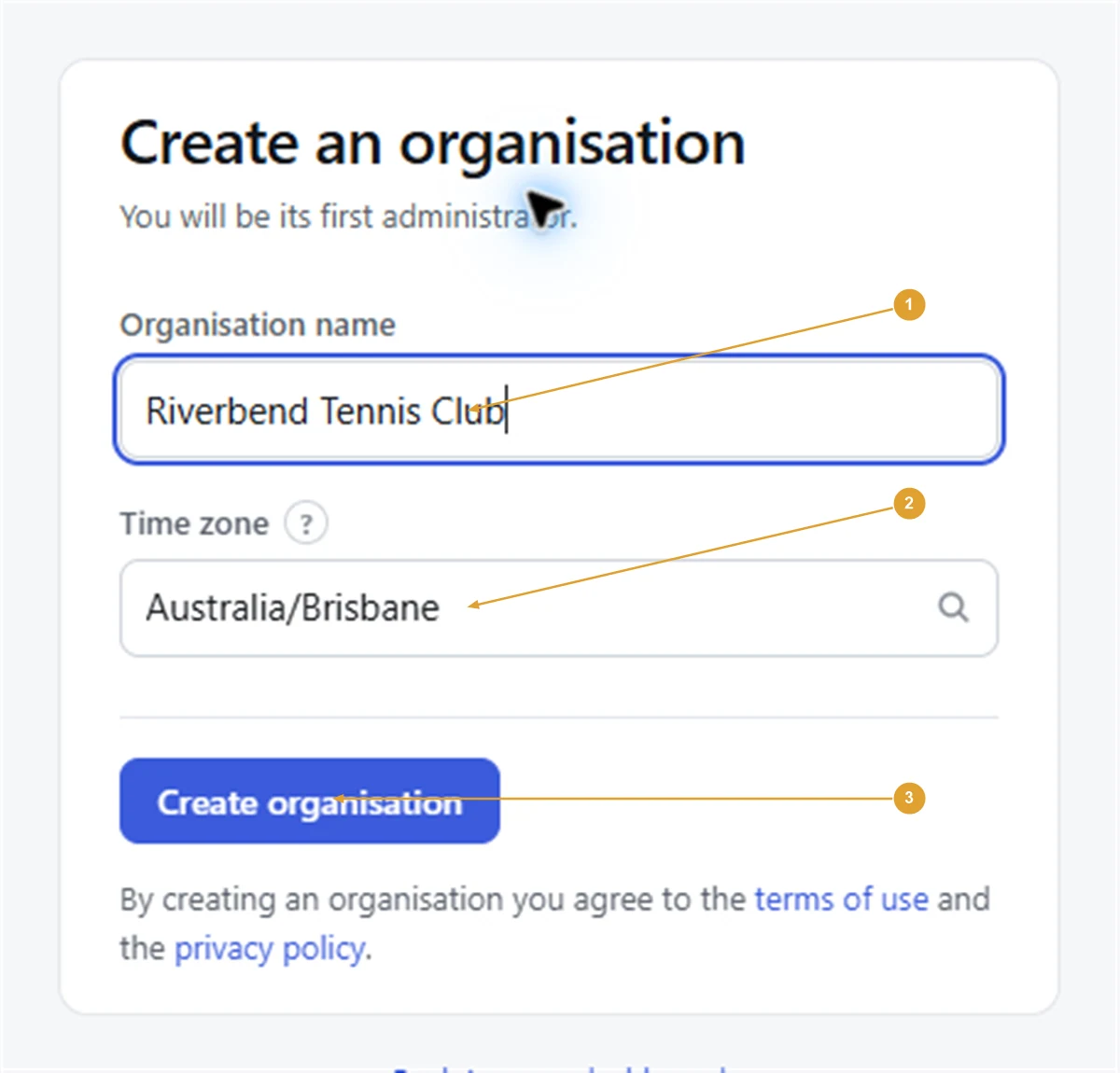
- Go to fairturns.com/signup. The page is called Create an organisation.
- Fill in Organisation name, Your name and Your email address.
- Choose a Time zone. Type a city, such as Brisbane or Perth, to find it quickly.
- Press Create organisation. FairTurns emails you a six-digit code.
- On the Check your email page, type the code into Verification code, then Choose a password of at least 10 characters.
- Press Set up my account. You land on the organisation’s calendar.
The code lasts 15 minutes. If it hasn’t turned up, use Code not arrived? Ask for a new one under the form, and check your junk folder.
Note: The time zone is the one every date on the roster is written in, so a 10:00 start reads as 10:00 for everybody. You can change it later under Settings, on the Organisation tab. Changing it doesn’t move any times: 10:00 stays 10:00.
If you already have an account
If your email address already has a FairTurns account, the sign-up form says so. Sign in first, then:
- Go to your Dashboard.
- Press New organisation (or Create an organisation if you aren’t in one yet).
- Give it an Organisation name and Time zone, then press Create organisation.
Each organisation is separate, with its own teams, people and settings. You switch between them from the Dashboard.
What you see next
A new organisation has no teams, so the calendar says Nothing to show yet. That is expected. Next, add your first team, then add the people who take turns.
Under Settings, the Organisation tab holds the name, an optional address (only shown on a public roster if you switch that on) and the time zone. It also shows the organisation’s ID, which never changes even if you rename it.
If you will share the running of the roster, read Administrators, moderators and members before you hand out jobs.
Still stuck?
Email info@fairturns.com and say what you were trying to do.