Keep dates ahead
Choose how many months of dates a repeating schedule keeps on the calendar, and stop or pause it when things change.
Help topics
Start
Create an organisationAdd your first teamAdd peopleThe join linkAdministrators, moderators and membersDates
Add a dateRepeating datesChange or cancel one dateKeep dates aheadPositions
Positions and headcountsWho can do whatFilling the roster
Fill empty placesRedistributeClear the rangeSame person all dayReading Turns bookedSharing
The public rosterYour next datesAway days
Mark yourself awayAway for a stretchAway regularlyAway days for people without an accountPro
What Pro addsReplying to a dateRoster emailsHow oftenBuying and renewing ProYour account
Sign-in codesChange your emailStop invitationsWhen something goes wrong
Didn’t get an emailA link has expiredTake back an answerHow far ahead
A repeating schedule writes real dates onto the calendar and keeps adding new ones as old ones pass, so it never runs out. A schedule made from the calendar starts 12 months ahead. You can choose 3, 6, 9 or 12 months.
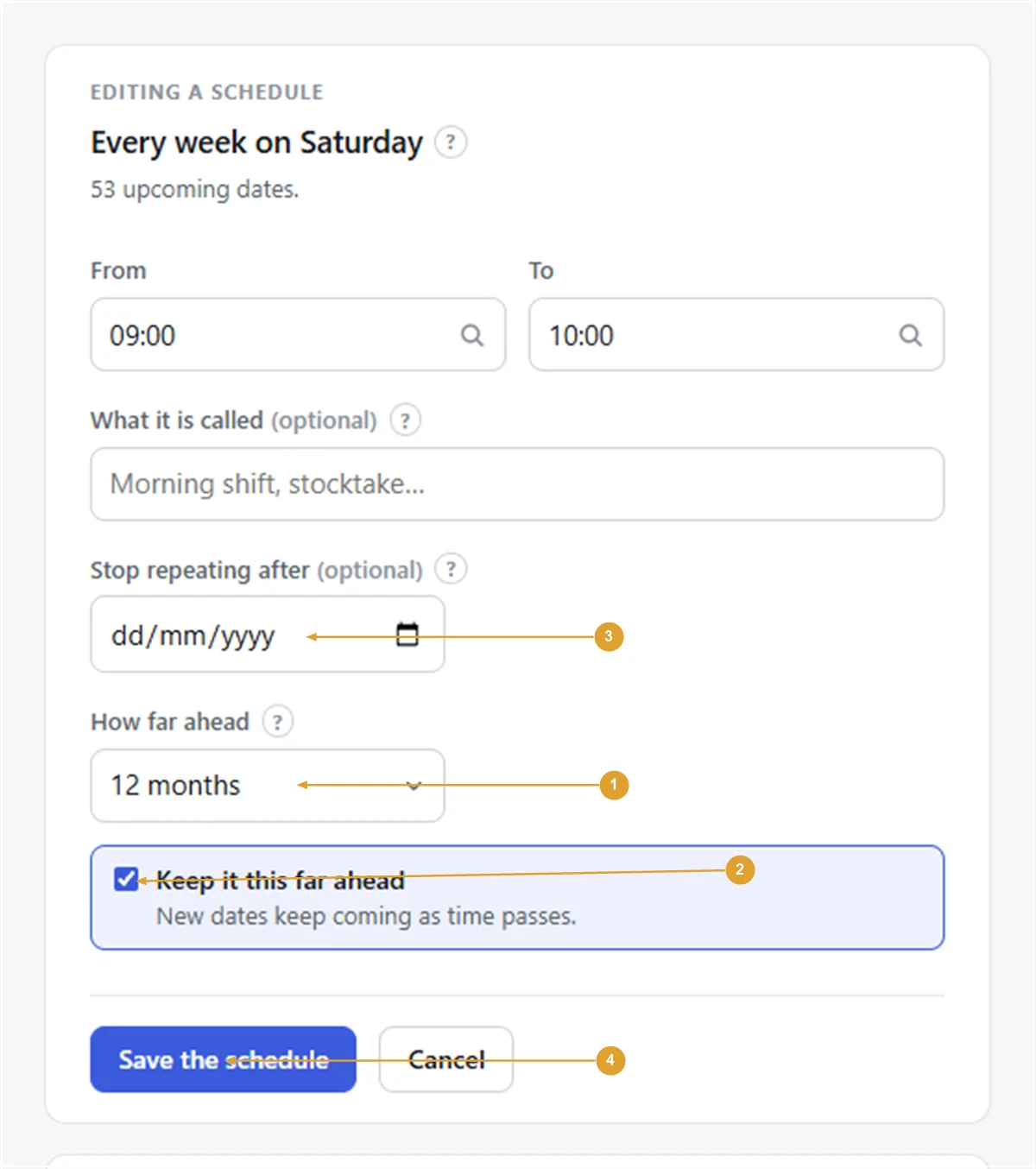
Each schedule on a team’s Schedules tab says how it is set, such as “Kept 12 months ahead, new dates left for you to fill”.
- Open the team and press the Schedules tab.
- Press Edit schedule beside the one you want.
- Choose How far ahead.
- Leave Keep it this far ahead ticked so new dates keep coming. Untick it to stop adding dates past the last one made.
- Press Save the schedule.
Shortening it never removes dates already made. A café filling shifts a month at a time might keep 3 months; a footy club planning the whole season might keep 12.
Note: New dates arrive with their places empty. Press Fill empty places on the Fill tab when you want people on them. With Pro, the Filling by itself card on that tab can put people on them as they are added.
Stop it on a date
When the season or the term has an end, set Stop repeating after on the same Edit schedule page and press Save the schedule.
FairTurns shows how many dates after that day come off the calendar, and that the people on them come off too. If you changed some of those dates by hand, choose Keep them or Remove them too. Press Stop repeating to go ahead.
Pause or delete
On the Schedules tab, open Pause or delete under the schedule.
- Pause stops new dates being added and marks the schedule Paused. Dates already on the calendar stay. Resume starts it again and adds any dates now due.
- Delete takes the schedule and all its upcoming dates away. Past dates stay as the record. Confirm with Delete the schedule; it can’t be undone.
For one date rather than the whole schedule, see Change or cancel one date. To set up a repeat in the first place, see Repeating dates. More on filling by itself.
Still stuck?
Email info@fairturns.com and say what you were trying to do.